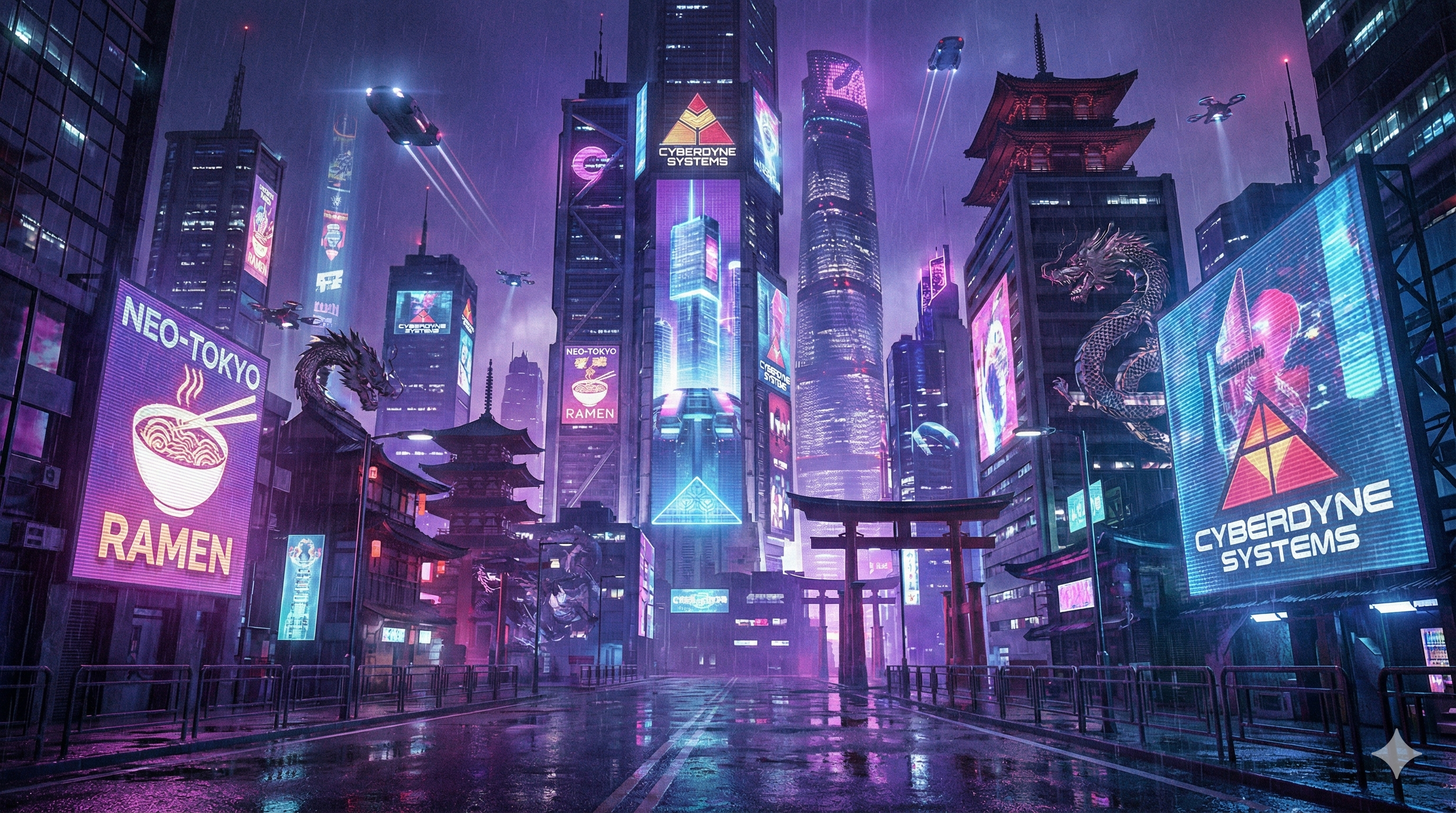
Can Nano Banana actually render clean, readable text in images? We tested it across logos, posters, product packaging, and social media graphics — with simple and deliberately tricky prompts. Here's what we found.
Quick Verdict
| Scenario | Result | Notes |
|---|---|---|
| Short text (1-3 words) | Excellent | Nearly perfect spelling and clarity |
| Logo text | Excellent | Clean fonts, good positioning |
| Headline text (4-8 words) | Good | Occasional minor spacing issues |
| Long text (10+ words) | Mixed | Multi-line text can break down |
| Special characters (& @ #) | Fair | Sometimes dropped or garbled |
| Non-English text | Fair | CJK characters less reliable than Latin |
Bottom line: Nano Banana handles short, explicit text prompts very well — on par with DALL-E 3 for most practical use cases. It struggles with paragraph-length text and special characters, just like every other AI image generator.
What Works Well
Logo Text — Near Perfect
Logos are Nano Banana's sweet spot. Short brand names with specified font styles render cleanly almost every time.
Test prompt:
Minimalist tech company logo. The text "NEXUS" in bold geometric sans-serif font, silver gray color. Clean white background. The letter X has a subtle gradient from blue to purple.
Result: Clean, correctly spelled, well-positioned. No issues.
Poster Headlines — Reliable
Headlines of 3-6 words render accurately when you specify font, size, and position.
Test prompt:
Cinematic movie poster, dark moody atmosphere. Title "THE LAST HORIZON" in large distressed metallic font at the top. Tagline "Some journeys have no return" in small italic white text at the bottom center.
Result: Both lines rendered correctly. Font style matched the description.
Product Packaging — Solid
Brand names on packaging render well, especially with clear placement instructions.
Test prompt:
Premium coffee bag design. Brand name "MOUNTAIN ROAST" in rustic brown serif font arched at the top. "Single Origin • Ethiopia" in small caps below. Kraft paper texture background.
Result: Brand name perfect. The bullet character (•) sometimes renders inconsistently — see failures section below.
Social Media Graphics — Good
Quote cards and simple text overlays work reliably.
Test prompt:
Instagram quote graphic with soft gradient background (pink to purple). The text "Create Something Beautiful Today" in elegant white script font, centered.
Result: Text is readable and well-styled. Script fonts occasionally have minor kerning quirks.
Where It Fails (Honest Assessment)
No AI image generator handles text perfectly — these failures are rooted in how diffusion models work, not in any single tool's shortcomings. For a deeper look at the structural reasons behind these issues, see our article on AI text rendering reliability. Here's where Nano Banana struggles:
Long Multi-Line Text
What happens: When you ask for more than ~10 words across multiple lines, letters start merging, spacing breaks down, and words may get truncated.
Example failure:
A flyer with: "GRAND OPENING CELEBRATION - JOIN US THIS SATURDAY FROM 10AM TO 6PM - FREE FOOD AND DRINKS FOR EVERYONE"
This kind of dense text is too much. Break it into multiple generations or use a design tool for body text.
Special Characters
What happens: Characters like &, @, #, and bullet points (•) are sometimes dropped, replaced, or garbled.
Workaround: Spell out special characters when possible ("and" instead of "&"), or accept minor imperfections and fix in post-processing.
Non-Latin Scripts
What happens: Chinese, Japanese, Korean, and Arabic characters are less reliable than Latin text. Character accuracy drops significantly for complex scripts.
Workaround: Use Latin text for AI-generated images when accuracy matters. Overlay translated text in a design tool afterward.
Very Small Text
What happens: When text is specified as "small" or "fine print," it often becomes unreadable blobs.
Workaround: Don't generate small text with AI. Generate the main visual and add fine print in post-processing.
The Prompt Formula That Works
After testing dozens of variations, this structure produces the most reliable results:
[Design description] with the text "[EXACT TEXT]" in [font style]
[color] [size] at [position].
Key Rules
- Always use quotation marks around the exact text you want rendered
- Specify font style — serif, sans-serif, script, handwritten, monospace
- Specify position — top center, bottom left, centered, etc.
- Keep text short — headlines and titles, not paragraphs
- One text element at a time works better than multiple text blocks
Font Style Descriptors That Work
- Serif: Traditional, elegant (Times, Georgia feel)
- Sans-serif: Modern, clean (Helvetica, Arial feel)
- Script: Handwritten, flowing
- Display/Decorative: Bold, attention-grabbing
- Monospace: Technical, code-like
- Handwritten: Casual, personal
Position Descriptors
- Top center, bottom left, middle right
- Overlaid on the image
- In a banner/ribbon/badge
- Along the bottom edge
Common Mistakes That Kill Text Quality
1. Vague Text Requests
❌ "Add a title to the image" ✅ "Add the title 'ADVENTURE AWAITS' in bold white sans-serif at the top"
2. Forgetting Quotation Marks
❌ Add the word hello to the sign ✅ Add the text "HELLO" to the sign
3. Ignoring Position
❌ "A poster with the text 'SALE'" ✅ "A poster with 'SALE' in large red letters centered in the upper third"
4. Too Much Text at Once
❌ Trying to render a full paragraph ✅ Keep text short — headlines, titles, single phrases work best
Step-by-Step: Creating a Logo With Clean Text
Let's walk through a real logo creation process:
Step 1: Basic concept
Logo for a cozy coffee shop called "Bean & Brew"
Step 2: Add text specification
Logo for a cozy coffee shop. The text "Bean & Brew" in warm brown handwritten script font.
Step 3: Add visual elements
Logo for a cozy coffee shop. The text "Bean & Brew" in warm brown handwritten script font. A simple coffee cup icon integrated with the ampersand.
Step 4: Add style details
Vintage-style logo for a cozy coffee shop. The text "Bean & Brew" in warm brown handwritten script font with a slight texture. A simple line-art coffee cup icon replaces the ampersand. Cream/off-white circular badge background.
Each step builds specificity. The more explicit you are, the better the text renders.
Nano Banana Pro vs Standard: Text Rendering
| Aspect | Standard | Pro |
|---|---|---|
| Spelling accuracy | Sometimes errors | Highly accurate |
| Font variety | Limited | Wide range |
| Text clarity | Basic | Professional |
| Long text handling | Struggles | Better, but still limited |
| Typography styles | Generic | Stylized |
Recommendation: Use Pro for any image where text accuracy matters. The difference is significant for logos and headlines.
Test It Yourself
Want to verify these results? Try this prompt in Nano Banana Studio:
A minimalist poster with the text "HELLO WORLD" in bold black sans-serif font, centered on a white background.
If the text renders clean — and it should — try progressively harder prompts to find your own limits.
Related Articles
- Why AI Still Struggles With Text in Images
- How to Use Nano Banana: Beginner's Guide
- Nano Banana vs DALL-E 3: Which is Better?
- AI Image Prompts: 10 Tips for Better Results
Last updated: February 23, 2026. Test results based on current Nano Banana Studio capabilities.